


How to FIX ERR_SSL_VERSION_OR_CIPHER_MISMATCH
-
You are at the right place to find a solution receiving ERR_SSL_VERSION_OR_CIPHER_MISMATCH error. You are not alone as thousands of webmasters and website visitors face that common issue daily. There are multiple variations of that error like "Error 113 (net::err_ssl_version_or_cipher_mismatch): unknown error OR "The client and server don’t support a common SSL protocol version or cipher suite
Even advanced webmasters may receive this error if they never met it before. The depreciation of the RC4 cipher is mainly the reason of the error. The Chrome browser trying to prevent visitors and users to be in a danger due to insecure RC4 cipher.
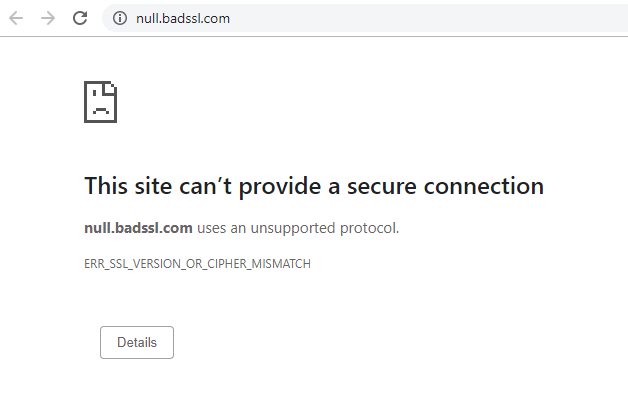
Our security experts prepared multiple working solutions solving ERR_SSL_VERSION_OR_CIPHER_MISMATCH error. We hope you will find the one working for you.
- Automatic renewals
- Less manual work
-
-
1
Step 1: Check Your SSL/TLS Certificate
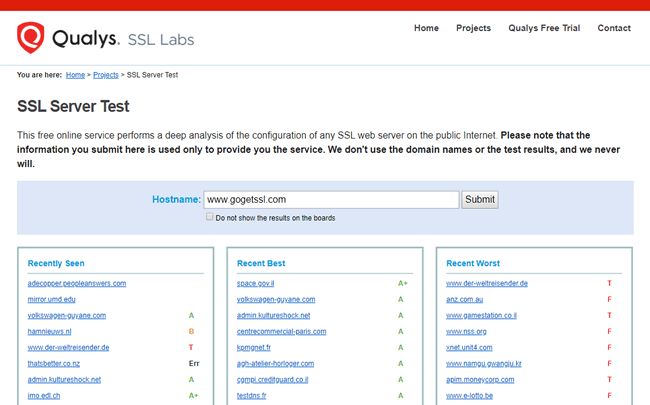
We highly suggest starting checking your SSL/TLS certificate using the most professional SSL test tool by SSL Labs. You will receive multiple error messages if your certificate is broken or old. It is possible to hide results from the public by checking "Do not show the results on the boards". It takes around two minutes to scan your web server. Start by entering your domain name in "hostname" field and click "Submit".
-
2
Step 2: Certificate Name Mismatch check
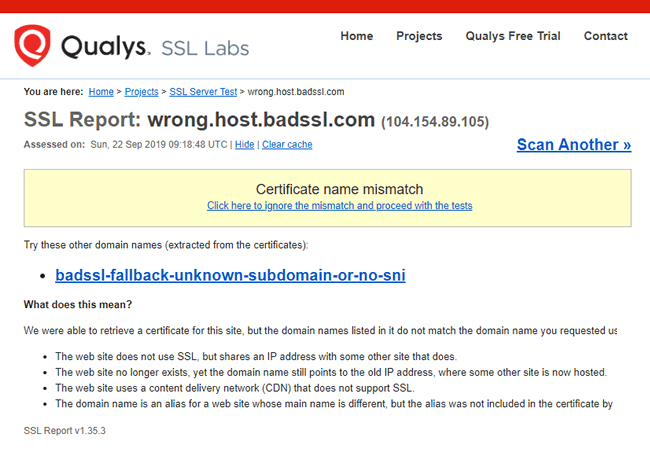
The checking process starts with Certificate name mismatch as one of the most common reasons to get the problem. SSL Test would show you the possible reasons helping you to diagnose the source of error.
- The website may use CDN (Content Delivery Network) with no support of SSL;
- Your website no longer exists, but the IP address points to an old/new website with a different domain name and SSL in use;
- Installed SSL doesn't cover the domain name you are checking;
-
3
Step 3: Old TLS version in use
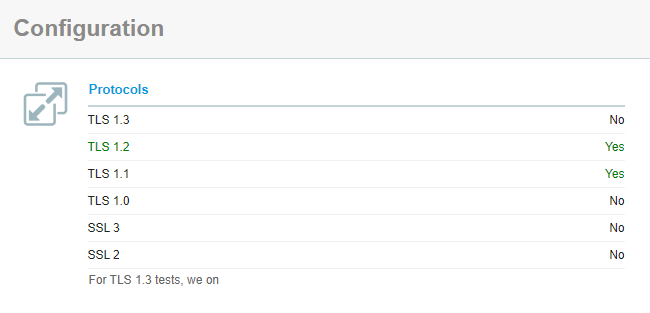
The old TLS version running on your web hosting server is a possible reason for getting problems. We suggest running at least TLS 1.2 or even TLS 1.3 version. Again, SSL Lab's checker would easily determinate what versions are in use on the server. Make sure to keep server up-to-date always.
-
4
RC4 Cipher Suite check
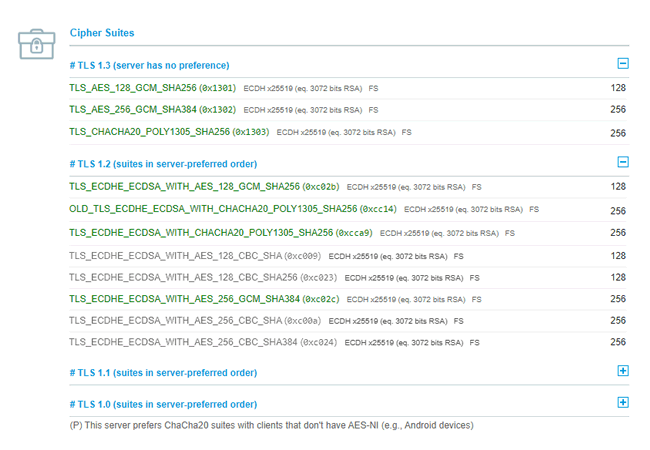
Google documentation states that error ERR_SSL_VERSION_OR_CIPHER_MISMATCH would appear as Chrome removed RC4 cipher suite starting at version 48. Microsoft and Google security engineers highly suggests disabling RC4 for best security practices. With SSL test you can find out all cipher and versions are currently in use on your server.
-
5
Firefox: SSL_ERROR_NO_CYPHER_OVERLAP
Firefox reports the same problem as SSL_ERROR_NO_CYPHER_OVERLAP, on a “Secure Connection Failed” page that says it cannot communicate securely with the server because there is no common encryption algorithm. The cause is the same as in Chrome: the browser and the server do not share a TLS version or cipher suite.
As a visitor: update Firefox. If you or a program changed its TLS settings in about:config (for example security.tls.version.min or security.tls.version.max), reset them to the default values. To test, also turn off HTTPS scanning in your antivirus.
As a site owner: enable TLS 1.2 and TLS 1.3 with modern cipher suites (ECDHE with AES-GCM or ChaCha20-Poly1305), disable SSL 3.0, RC4 and other outdated ciphers, and test the server again with an SSL server test.
-
Conclusions to summarize
There are things you can do if you faced ERR_SSL_VERSION_OR_CIPHER_MISMATCH while surfing the Internet. In most cases using SSL Labs will be enough to find out what is wrong with your server configuration for a quick update.
-
