


How to Fix NET::ERR_CERT_AUTHORITY_INVALID
-
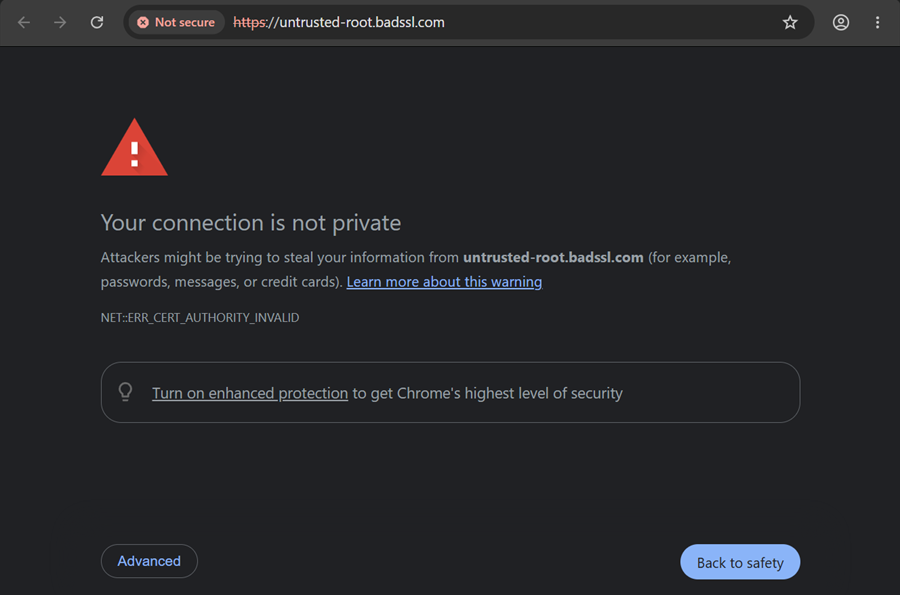
Chrome and Edge show NET::ERR_CERT_AUTHORITY_INVALID together with "Your connection is not private" when they cannot trace the website's SSL certificate back to a certificate authority (CA) they trust. The certificate may be self-signed, issued by an unknown or internal CA, or installed without its intermediate certificate. Sometimes the cause is on your own device: antivirus software or a network that intercepts HTTPS traffic. Below are the fixes for website visitors and for website owners.
- Automatic renewals
- Less manual work
-
-
1
First, find out whose problem it is
Open the same website on another device that uses a different network, for example your phone on mobile data, or check it with our free SSL Checker.
- The error appears everywhere and the SSL Checker reports a problem: the website's certificate is at fault. Website owners, go to step 3.
- The website opens fine elsewhere: the cause is on your computer or network. Continue with step 2.
You can click "Advanced" → "Proceed to … (unsafe)" to open the page anyway, but never do this on sites where you log in, pay or enter personal data: the warning also appears when someone intercepts the connection.
-
2
Solutions for website visitors
- Check the date and time. A wrong clock makes valid certificates look untrusted. Turn on automatic date, time and time zone in your system settings, then restart the browser.
- Leave public or hotel Wi-Fi. Many public networks redirect you to a login page first, which causes certificate errors. Open any website without HTTPS to bring up the login page, or switch to mobile data.
- Check your antivirus or firewall. Products with "HTTPS scanning", "web shield" or "SSL inspection" place their own certificate between you and the website. Temporarily turn this feature off, or update the antivirus, and reload the page.
- Turn off VPN, proxy and browser extensions. Test in an Incognito window with extensions disabled. If the page opens, enable the extensions one by one to find the one that causes the error.
- Update your operating system and browser. Old systems (for example Windows 7 or old Android versions) lack newer root certificates and no longer trust many websites.
- Clear the SSL state and cache. On Windows press Win + R, type inetcpl.cpl, open the "Content" tab and click "Clear SSL state". In Chrome press Ctrl + Shift + Delete and clear cached images and files.
On a company computer, the error often means the corporate proxy's root certificate is missing on your device. Ask your IT team to install it; do not bypass the warning.
-
3
Solutions for website owners
- Install the intermediate certificate. The most common cause. Browsers need the full chain: your certificate plus the CA's intermediate certificate. Desktop Chrome sometimes fetches a missing intermediate on its own, while phones and other clients fail, so the error appears only for some visitors. Download the right bundle from our intermediate and root certificates pages, install it next to your certificate (on Nginx, append it to the certificate file), restart the web server and test again with the SSL Checker.
- Replace a self-signed certificate. Self-signed certificates and certificates from an internal company CA are trusted only on devices where that CA is installed. Public visitors always see the error. A trusted domain-validated certificate such as Sectigo PositiveSSL costs from $16.00 per year and is issued in minutes.
- Make sure the right certificate is served. If several sites share one server, a missing or wrong virtual host can serve a default or test certificate. Check which certificate the browser receives (click the "Not secure" label → certificate details) and correct the server configuration.
- Check the issuer. If your certificate was issued by a CA that browsers stopped trusting, or by a test or staging CA (for example a staging ACME environment), replace it with a certificate from a publicly trusted CA. DigiCert, Sectigo, GeoTrust and RapidSSL certificates are trusted by all major browsers.
- For localhost and development, public CAs do not issue certificates for localhost. Create a local CA and trust it on your machine; see SSL certificate for localhost.
Tired of renewing and reinstalling certificates by hand? Automated SSL issues, installs and renews them for you, including the correct intermediate chain.
-
NET::ERR_CERT_AUTHORITY_INVALID: frequently asked questions
What does NET::ERR_CERT_AUTHORITY_INVALID mean?
The browser could not confirm that the website's certificate was issued by a trusted certificate authority. The connection is encrypted, but the browser cannot verify who is on the other end.
Is it safe to continue to the website?
Only if you know why the error appears, for example on your own test server. Never continue on a site where you log in, pay or enter personal data, because the same warning appears when someone intercepts the connection.
Why do I see it on only one website?
If other HTTPS sites work, the website's certificate is usually at fault: it is self-signed or installed without its intermediate certificate. Its owner has to fix it.
Why do I see it on every website?
Then the cause is on your device or network: a wrong system clock, antivirus HTTPS scanning, a proxy or VPN, a public Wi-Fi login page or an outdated operating system.
What is the Firefox version of this error?
Firefox shows SEC_ERROR_UNKNOWN_ISSUER for the same problem. Safari says "This connection is not private".
