

How to Install & Automate SSL Certificates on LiteSpeed Using ACME
-
Automate SSL/TLS on LiteSpeed (OpenLiteSpeed or LiteSpeed Enterprise) using the acme.sh client and External Account Binding (EAB). This guide walks you through installation, certificate issuance, LiteSpeed setup, and auto-renewal verification. Replace placeholder values with your own.
-
-
*
Prerequisites
- LiteSpeed Web Server installed (fresh install is fine)
- Shell access with sudo/root privileges
- DNS A/AAAA record pointing to this server
- Outbound internet access to your ACME Server URL (e.g., https://acme.sectigo.com/v2/DV)
- ACME SSL subscription with EAB credentials (EAB_KID and EAB_HMAC_KEY)
- HTTP Listener on port 80 for ACME validation (Verify in WebAdmin → Listeners → Port 80 is set to ANY; see Appendix for setup instructions)
-
1
Step 1: Install acme.sh
Install the acme.sh script to handle ACME SSL certificate issuance, installation, and renewal.
- Install acme.sh
curl https://get.acme.sh | sh - Load environment and verify
                                            source ~/.bashrc
                                            acme.sh --version
Tip: If install fails, confirm curl and git are installed. Rerun with --force if partially installed. - Install acme.sh
-
2
Step 2: Register your ACME Account
Register your ACME client using your EAB credentials to link it with your SSL provider.
                                    acme.sh --register-account \
                                    --server SERVER \
                                    --eab-kid EAB_KID \
                                    --eab-hmac-key EAB_HMAC_KEY \
                                    --accountemail you@example.com
Replace these placeholders with your own values:
- SERVER - The ACME server URL provided by your Certificate Authority.
- EAB_KID - The External Account Binding Key ID provided by your CA.
- EAB_HMAC_KEY - The EAB HMAC Key provided by your CA.
- you@example.com - Your email address for account registration and notifications.
Note: If the account already exists for these EAB credentials, acme.sh will reuse it.
Tip: If registration fails: Check your EAB credentials & Ensure outbound port 443 is open. -
3
Step 3: Issue the Certificate (Webroot Mode)
Run this command to issue your SSL certificate via the webroot method:
                                    acme.sh --issue \
                                      -d yourdomain.com \
                                      -w /path/to/webroot \
                                    --server SERVER
Tip: Add -d www.yourdomain.com to cover www.Replace these placeholders with your own values:
- yourdomain.com - Your actual domain name.
- /path/to/webroot - The document root path of your website.
- SERVER - The ACME server URL provided by your CA, eg https://acme.sectigo.com/v2/DV
Tip: If you see unauthorized/not delegated, confirm you used the correct Sectigo URL and EAB credentials.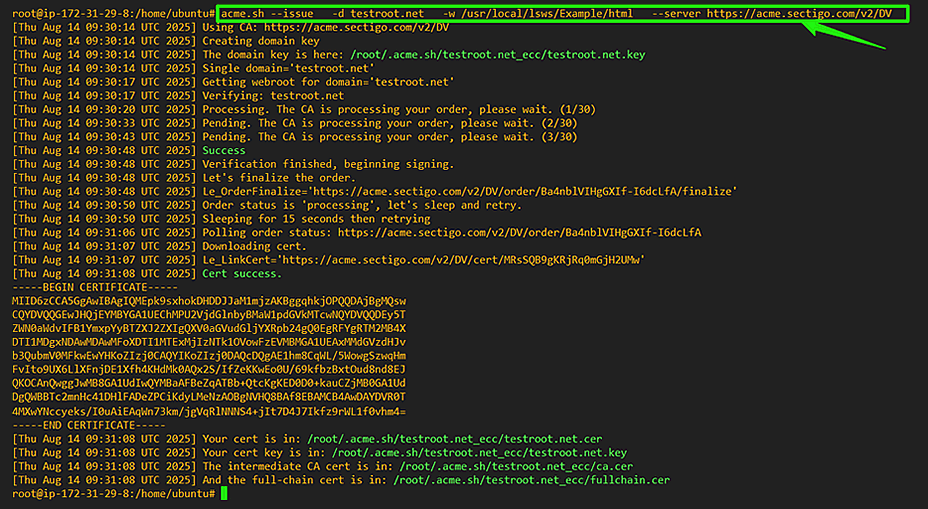 Image Caption: Terminal showing successful issuance of an ACME SSL certificate for the domain
 -
4
Step 4: Install SSL Certificate
Install the issued certificate and key into LiteSpeed and configure it to reload automatically after renewal.
Create Certificate Directory
mkdir -p /usr/local/lsws/conf/cert/yourdomain.comInstall Certificate & Reload LiteSpeed
                                            acme.sh --install-cert -d yourdomain.com \
                                          --key-file       /usr/local/lsws/conf/cert/yourdomain.com/yourdomain.com.key \
                                          --fullchain-file /usr/local/lsws/conf/cert/yourdomain.com/yourdomain.com.crt \
                                          --reloadcmd     "/usr/local/lsws/bin/lswsctrl reload"
Tip: LiteSpeed will reload automatically after each renewal.Replace yourdomain.com with the domain you will use for the SSL certificate.
 Image Caption: File browser/terminal showing the key and certificate under LightSpeed’s certificate directory: /usr/local/lsws/conf/cert/yourdomain.com/Tips: If LiteSpeed doesn’t reload with new cert, confirm --reloadcmd path is correct. Check file ownership/permissions under /usr/local/lsws/conf/cert/.
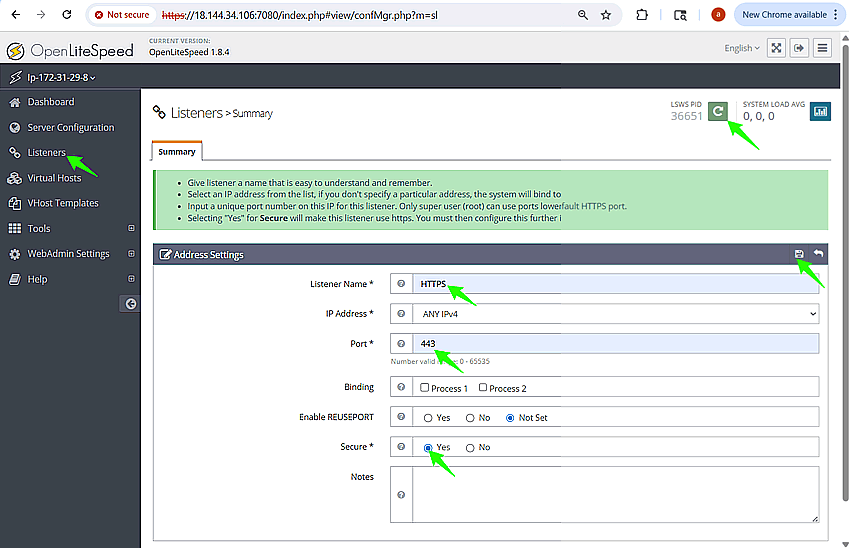
Add HTTPS Listener on Port 443 (if not already set up)
Create the TLS listener after you have certificate files in place.
- Go to WebAdmin → Listeners → Add
- Set:
- Name: HTTPS
- IP Address: ANY
- Port: 443
- Secure: Yes
Under SSL tab, set:
- Private Key File: /usr/local/lsws/conf/cert/yourdomain.com/yourdomain.com.key
- Certificate File: /usr/local/lsws/conf/cert/yourdomain.com/yourdomain.com.crt
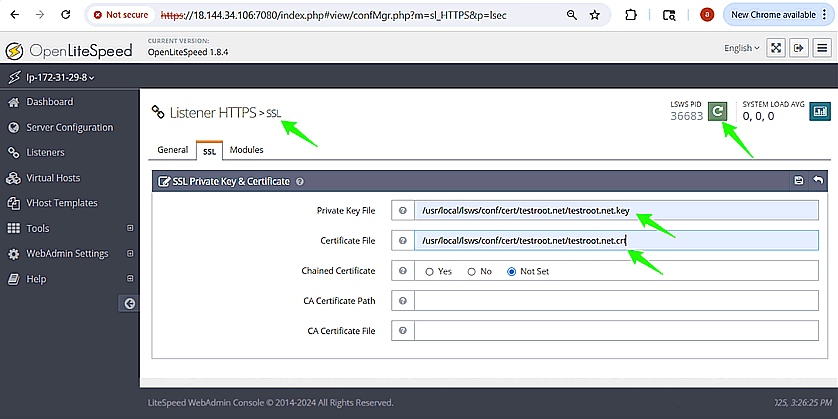 Image Caption: iteSpeed WebAdmin HTTPS listener configuration with private key and certificate file paths set.
Map your virtual host (e.g., Example) to domain *.
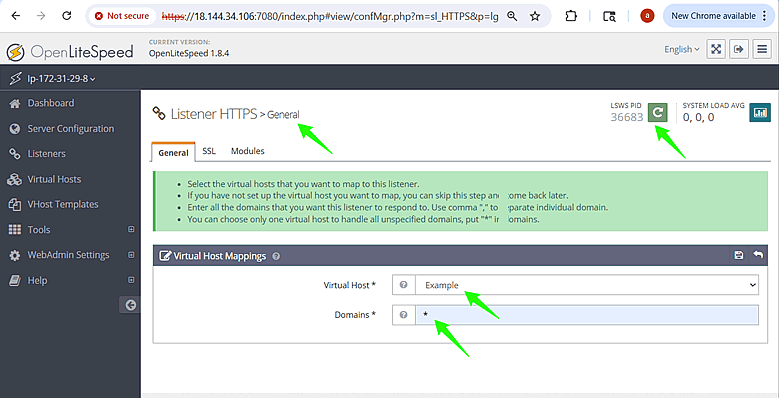
Save and Restart LiteSpeed.
Tips: If WebAdmin rejects HTTPS listener, confirm cert/key file paths are correct. Restart LSWS and check logs in /usr/local/lsws/logs/error.log. -
5
Step 5: Verify Installation & Auto-Renewal
ACME.sh will automatically renew your SSL certificate about 30 days before it expires. It’s a good idea to test auto-renewal now to make sure your server is correctly configured for it to run.
Verify the SSL Installation
Visit https://yourdomain.com and confirm:
- Site loads over HTTPS
- Certificate is valid and matches your domain
Check Cron Setup
crontab -lTypical entry looks like:
24 13 * * * "/root/.acme.sh"/acme.sh --cron --home "/root/.acme.sh" > /dev/nullTest Renewal Manually
acme.sh --renew -d yourdomain.com --forceReplace yourdomain.com with the domain you will use for the SSL certificate.
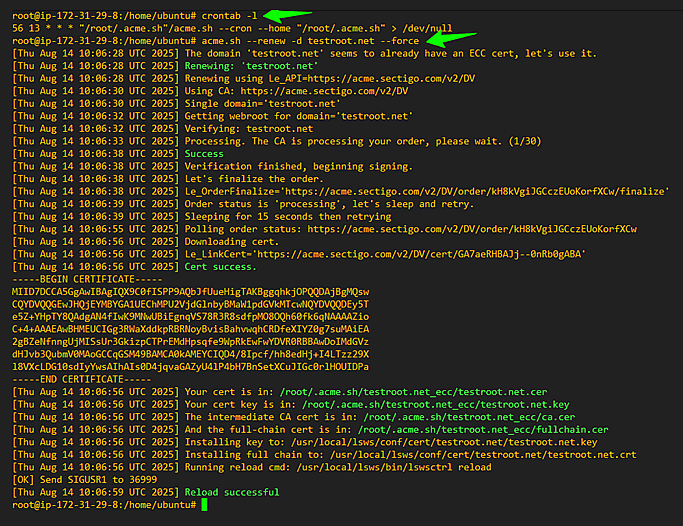 Image Caption: Terminal showing crontab -l with the acme.sh cron entryTroubleshooting: If SSL monitor shows expired cert, confirm cron ran and LSWS reloaded. Clear CDN cache if changes don’t show.
-
Optional Checks & Troubleshooting
-
These steps are not required for most installations but are helpful if you encounter issues. You may also contact our support team for more questions.
-
-
*
Appendix: HTTP Listener & ACME Path Verification
Configure the HTTP listener (port 80)
This step prepares your LiteSpeed server for SSL certificate automation by enabling it to properly respond to ACME HTTP-01 validation requests on port 80, which is required for certificate issuance.
- Sign in to LiteSpeed WebAdmin: https://<SERVER-IP>:7080
- Go to Listeners → Default (this exists on fresh installs).
- Set:
- Port = 80
- IP = ANY
- Save and Restart LiteSpeed.
- On fresh installs, the Example virtual host is already mapped to this listener by default, with a wildcard domain (*) to handle all incoming HTTPS requests.
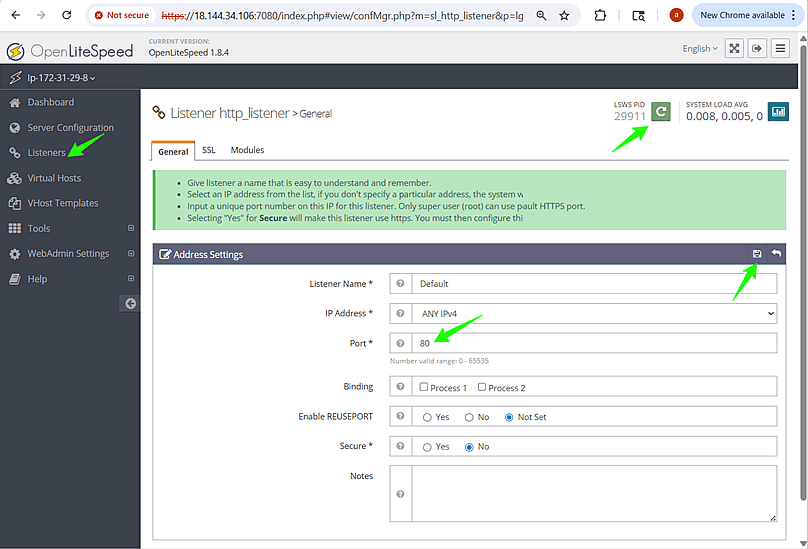 Image Caption: LiteSpeed WebAdmin showing the Default Listener configured on Port 80 with IP set to ANY, ready for ACME SSL validation.Note: You do not need to bind a specific domain for HTTP validation. Using the wildcard (*) in the virtual host is sufficient for ACME validation, as it allows all subdomains to pass HTTP-01 challenges automatically.Troubleshooting: If port 80 is blocked or conflicting with another service, run:
sudo lsof -i :80
to find the process using it, stop that process, and restart LiteSpeed.Verify ACME Path is Reachable (Optional)
Before requesting your SSL certificate, confirm that the ACME challenge directory (/.well-known/acme-challenge/) is accessible via HTTP from your webroot. This helps prevent validation failures during issuance.
-
Confirm your OS/distro
cat /etc/lsb-releaseThis helps you confirm your environment (Ubuntu/Debian/CentOS, etc.) before working with the LiteSpeed webroot.
-
Create the ACME challenge directory and test file
cd /usr/local/lsws/Example/html mkdir -p /usr/local/lsws/Example/html/.well-known/acme-challenge echo "Welcome test" > /usr/local/lsws/Example/html/.well-known/acme-challenge/testfile -
Verify with curl
curl http://yourdomain.com/.well-known/acme-challenge/testfileyourdomain.com - Your actual domain name. Replace with the domain you will use for the SSL certificate.
 Image Caption: Verifying ACME HTTP challenge directory setup on LiteSpeed by creating and accessing a test file.
If you force redirect HTTP→HTTPS, add an exception so ACME files stay on HTTP:# cat /usr/local/lsws/Example/html/.htaccess
RewriteEngine On # If HTTPS is not already on, redirect to HTTPS RewriteCond %{HTTPS} !=on RewriteRule ^ https://%{HTTP_HOST}%{REQUEST_URI} [L,R=301]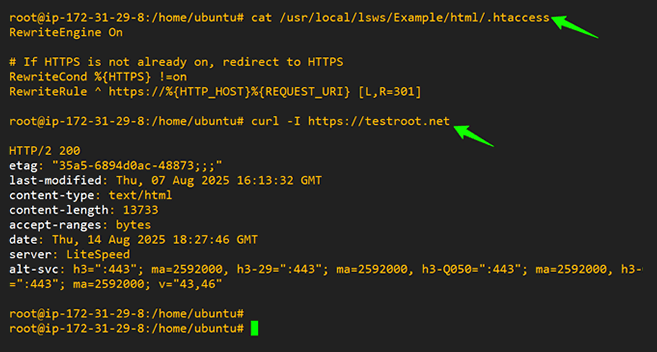 Image Caption: Verifying ACME HTTP-01 challenge directory accessibility on LiteSpeed by creating and successfully retrieving a test file over HTTP.Note: Ensure port 80 is open in OS firewall and any cloud security group/WAF/CDN in front of the server.Troubleshooting: If curl test fails, check file permissions under .well-known/acme-challenge/. Ensure no HTTPS redirect is applied for ACME path.
-
-
*
Quick Fixes
- 404 on challenge file → Re check Step 1.5 path and permissions; ensure .htaccess exception exists; confirm listener is on port 80 and security groups/firewalls allow port 80.
- Unauthorized / Not Delegated → Ensure Step 3 used the Sectigo directory URL and the correct EAB for this CaaS subscription/domain.
- /usr/local/lsws/Example/html does not contain DNS → Informational message from acme.sh when using webroot; safe to ignore.
- Port 80 blocked / conflicting → Verify nothing else is bound to port 80; sudo lsof -i :80; fix and restart LSWS.
- Standalone mode conflicts → Avoid --standalone when LiteSpeed is running; use --webroot mode instead.
-
*
Summary
You’ve successfully:
- Registered your ACME account with EAB credentials
- Issued and installed an SSL certificate
- Configured LiteSpeed to reload automatically after renewal
Your SSL certificates will now renew automatically with no manual intervention.
-