
Install an ACME SSL Certificate on Windows IIS
-
Follow these instructions to install an ACME-based SSL certificate for a website that’s hosted on a Windows IIS Server.
-
-
*
Prerequisites
- You will need administrative access to the Windows Server, typically by connecting via Remote Desktop Protocol (RDP). After connecting to your server, proceed with the below steps.
- Ensure that there’s a binding (at least for port 80) for your domain name already configured in IIS. (A website that’s only configured with a default/catch-all/wildcard hostname won’t work with Win-ACME.)
-
1
Step 1: Setup Win-ACME
- Go to win-acme and download the latest version of the software.
- Extract the zip folder to C:\Program Files\Win-ACME
- Navigate to C:\Program Files\Win-ACME and double-click the “wacs” file to ensure it runs
-
2
Step 2: Install SSL Certificate
Open Powershell and run this command:
& "C:\Program Files\Win-ACME\wacs.exe" --source iis --host yourdomain.com --store certificatestore --installation iis --baseuri SERVER --eab-key-identifier EAB_KID --eab-key EAB_HMAC_KEY --accepttosReplace these placeholders with your values:
- SERVER = the server URL provided by the CA, eg https://acme.sectigo.com/v2/DV/
- EAB_KID = EAB Mac ID provided by the CA (this is the shorter string of text/numbers)
- EAB_HMAC_KEY = EAB Mac Key provided by the CA (this is the longer string of text/numbers)
- yourdomain.com = your full domain, eg mydomain.com. If you want to install the certificate for www and non-www, provide both hostnames as a comma-separated list, like this: --host “mydomain.com,www.mydomain.com”
Tip: if you experience an error, rerun the command with --verbose added to get more detailed information.
-
3
Step 3: Confirm Setup
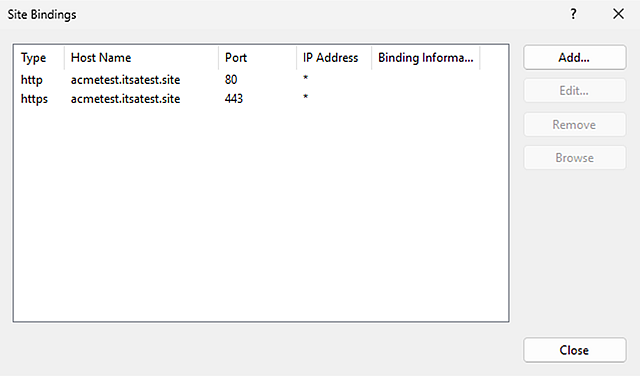
Visit your website with https:// to confirm the installation of the SSL certificate. You can also go to Server Manager > Tools > Internet Information Services (IIS) Manager > [name of your server] > Sites > [name of your site] > Bindings to confirm that an HTTPS (port 443) binding has been created for your site:
To confirm the scheduled renewal in Win-ACME, run this command:
& "C:\Program Files\Win-ACME\wacs.exe" --list --baseuri https://acme.sectigo.com/v2/DV/?
Expect to see output like this:
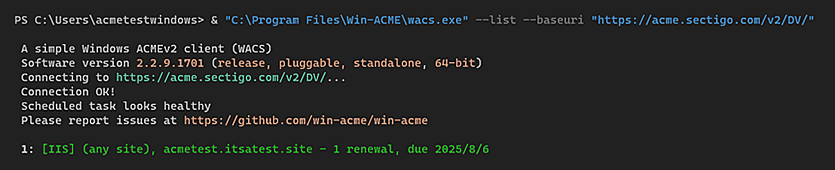
Note: Win-ACME manages certificates per ACME server—you must specify the ACME server using --baseuri or you won’t see the installed certificate and renewal information.
-