


How to Generate a CSR in Plesk Onyx (Version 17)
-
To order an SSL/TLS certificate, you need a Certificate Signing Request (CSR) and a Private Key. Plesk Onyx allows you to generate both directly from its control panel.
Follow these steps to create a CSR for your domain.
AUTOMATED SSL · ACME
Stop installing SSL manually.
Switch to Automated SSL and let ACME handle certificate issuance, installation and renewals.
- Automatic renewals
- Less manual work
From $24.98per year
Automate SSL
-
-
*
Step 1. Log In to Plesk
- Log in to your Plesk control panel.
- Open Websites & Domains from the left-hand menu.
- Select the domain you want to secure.
-
*
Step 2. Open SSL/TLS Certificate Settings
- Find and open SSL/TLS Certificates.
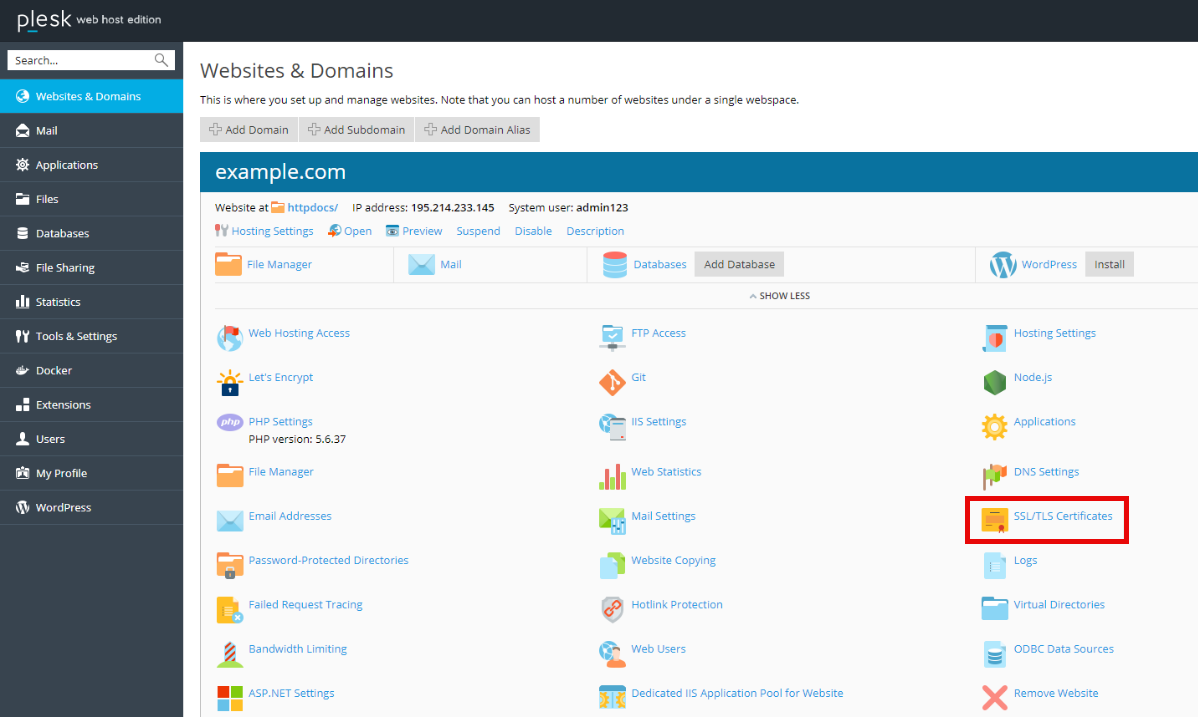
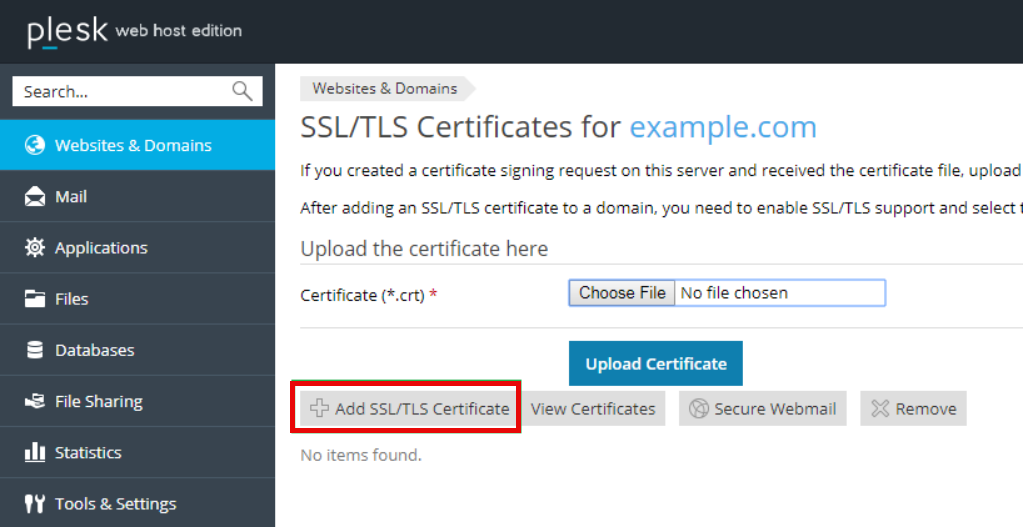
- Click Add SSL/TLS Certificate.
-
*
Step 3. Enter Certificate Details
On the Add SSL/TLS Certificate page, complete the required fields:
- Certificate Name: Enter a name to identify the certificate in Plesk
- Bits: Select the RSA key size required by your Certificate Authority. RSA 2048-bit is a widely supported option; Plesk may also offer 3072-bit and 4096-bit keys.
- Country: Select your country.
- State or Province: Enter your state or province.
- Location: Enter your city.
- Organization: Enter your company's legal name, if applicable.
- Organization Unit: Enter your department, if applicable.
- Domain Name: Enter the fully qualified domain name (FQDN) you want to secure.
- Email: Enter the website administrator's email address.
For a wildcard certificate, enter the domain with an asterisk, for example, *.example.com.
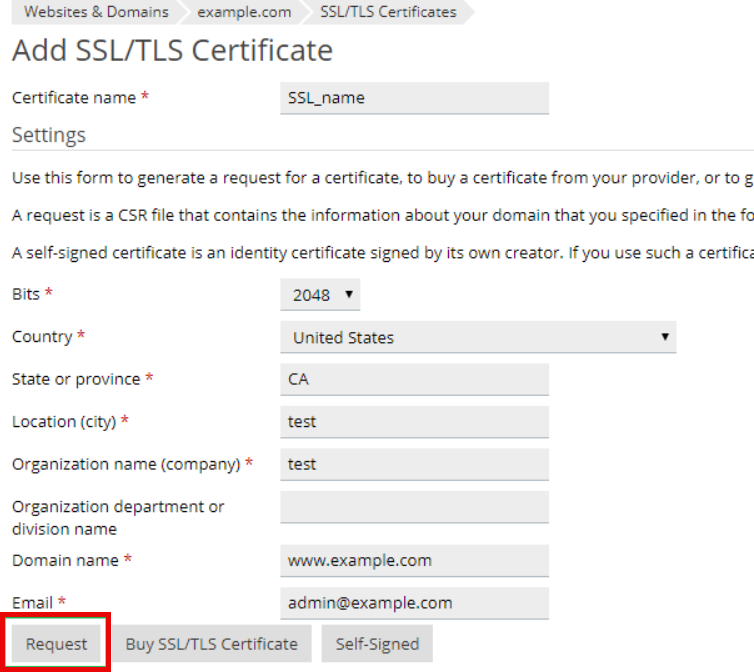
Review the information and click Request.
-
*
Step 4. Retrieve Your CSR
Plesk will generate the private key and CSR and store them in its certificate repository.
- Return to Websites & Domains > SSL/TLS Certificates.
- Find the certificate you just created and click its name.
- Locate the CSR section.
- Copy the entire CSR, including the header and footer:
-----BEGIN CERTIFICATE REQUEST-----
Your encoded CSR data
-----END CERTIFICATE REQUEST-----
- Submit the CSR during your SSL certificate order.
Important: Your private key is stored in Plesk and must remain confidential. Do not send it to the Certificate Authority. You will need the matching private key when installing your issued SSL/TLS certificate.
-
Similar articles from CSR / SSL Generation
How to Generate CSR without Common name
How to Generate an ECC CSR and Private Key for Apache
How To Generate CSR on IIS 7
How To Generate CSR on IIS 10
How to Generate a CSR in Microsoft Exchange Server 2013 and 2016
CSR and Private Key Generation Using OpenSSL
How to Generate a Private Key and CSR in cPanel
How to Generate a CSR in Plesk Onyx (Version 17)
