


How to Generate a Private Key and CSR in cPanel
-
To order an SSL certificate, you need a Private Key and a Certificate Signing Request (CSR). cPanel allows you to generate and manage both directly from your hosting account.
The cPanel interface may vary depending on its version and hosting provider. In newer installations, SSL tools may appear under SSL/TLS Certificates, with separate Keys and Requests tabs. In other installations, you may find them under SSL/TLS.
- Automatic renewals
- Less manual work
-
-
*
Step 1. Generate a Private Key in cPanel
- Log in to your cPanel account.
- Go to the Security section and open SSL/TLS or SSL/TLS Certificates.
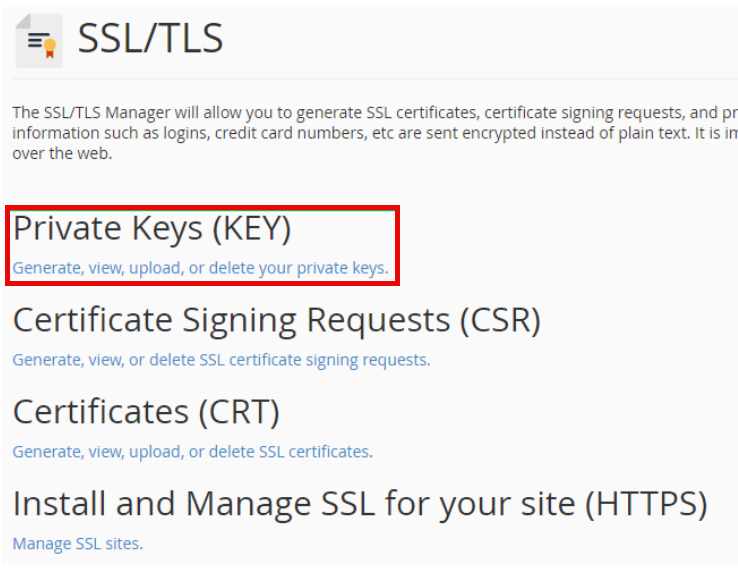
- Open the Keys tab or click Generate, view, upload, or delete your private keys under Private Keys (KEY).
- Under the private key generation section, select the required key type.
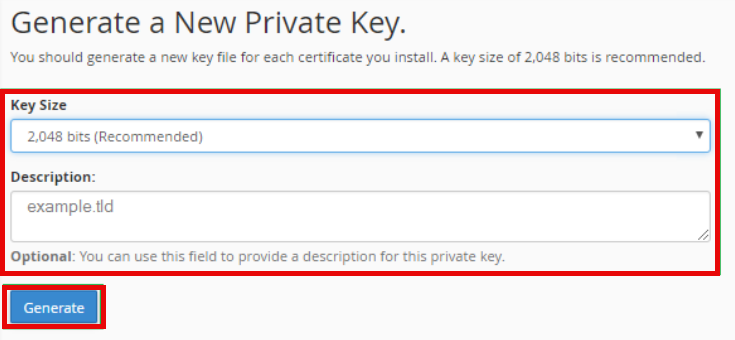
- Optionally, enter a description to help you identify the key later (for example, example.com – SSL certificate).
- Click Generate.
Your private key will be generated and made available in cPanel. Make sure it appears in the list of keys stored on the server.
Important: Please specify your domain name when generating the CSR.
-
*
Step 2. Generate a Certificate Signing Request (CSR)
- Return to the main SSL/TLS interface or open the Requests tab in SSL/TLS Certificates.
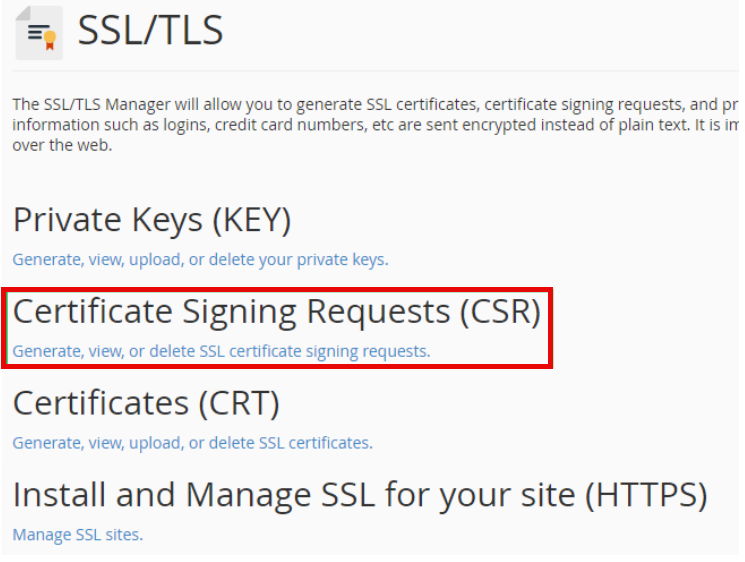
- Under Certificate Signing Requests (CSR), click Generate, view, or delete SSL certificate signing requests.
- On the Generate a New Certificate Signing Request (CSR) page, select the private key you created in Step 1 from the Key menu. If the key is not listed, make sure it has been generated or uploaded to cPanel.
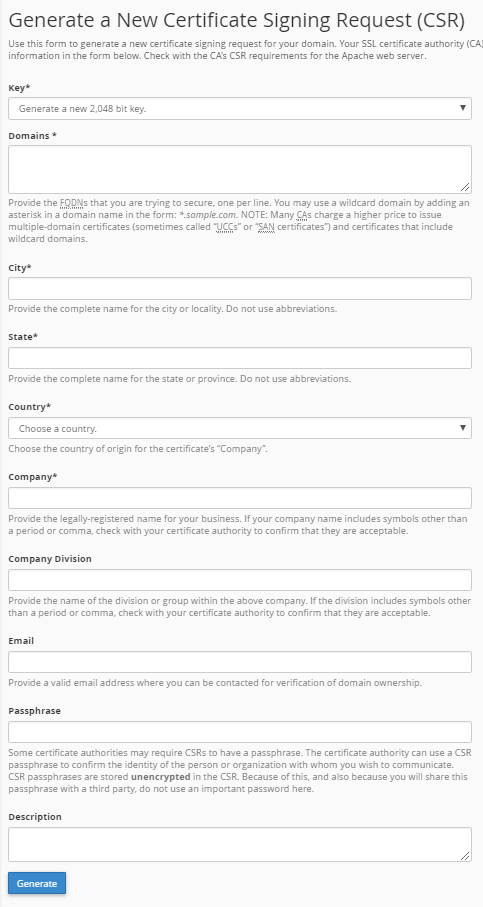
- Complete the CSR form with the required information:
- Domain: Enter the fully qualified domain name (FQDN) you want to secure, such as example.com or www.example.com.
- Company: Enter your organization's legal name, if applicable.
- Company Division: Enter the relevant department, if requested.
- City and State: Provide the appropriate location details.
- Country: Select the correct country.
- Email: Enter a valid contact email address, if requested.
The exact fields may vary. For a multi-domain certificate, make sure all required domain names are included in the CSR form and match your certificate order.
- Review the information and click Generate.
cPanel will generate the CSR associated with the selected private key.
-
*
Step 3. Copy and Save Your CSR
After generating the CSR:
- Locate the newly created request in the CSR list.
- Open or view the request. If necessary, click Edit to display its encoded CSR.
- Copy the entire CSR, including the header and footer:
-----BEGIN CERTIFICATE REQUEST-----
Your encoded CSR data
-----END CERTIFICATE REQUEST-----
- Paste the CSR into a plain-text editor and save it for your SSL certificate order.
- Submit the CSR in the appropriate field during the GoGetSSL certificate ordering process.
You can provide the CSR to the Certificate Authority. It does not contain your private key.
-
*
Important: Keep Your Private Key Secure
Your private key must remain confidential. Do not send it to the Certificate Authority or include it in your certificate order.
Keep a secure backup of the key as a lost private key cannot be recovered. If it is lost, you will need to generate a new key and CSR and have the certificate reissued.
Once your SSL certificate has been issued, you can install it in cPanel using the Install and Manage SSL for your site (HTTPS) feature.
-
