


Firefox's Unified Trust Panel: What the Shield Icon Means
-
Firefox 149 for desktop introduced the Unified Trust Panel, replacing the separate padlock and tracking protection icons with a single shield in the address bar.
The new panel combines information about connection security and Enhanced Tracking Protection (ETP), helping users understand whether their connection is encrypted and how Firefox protects their privacy.
Here's what each shield icon means and how to check a website's SSL/TLS certificate in Firefox.
- Automatic renewals
- Less manual work
-
-
*
What Do the Firefox Shield Icons Mean?
Firefox uses different shield indicators to show the security and privacy status of a website.
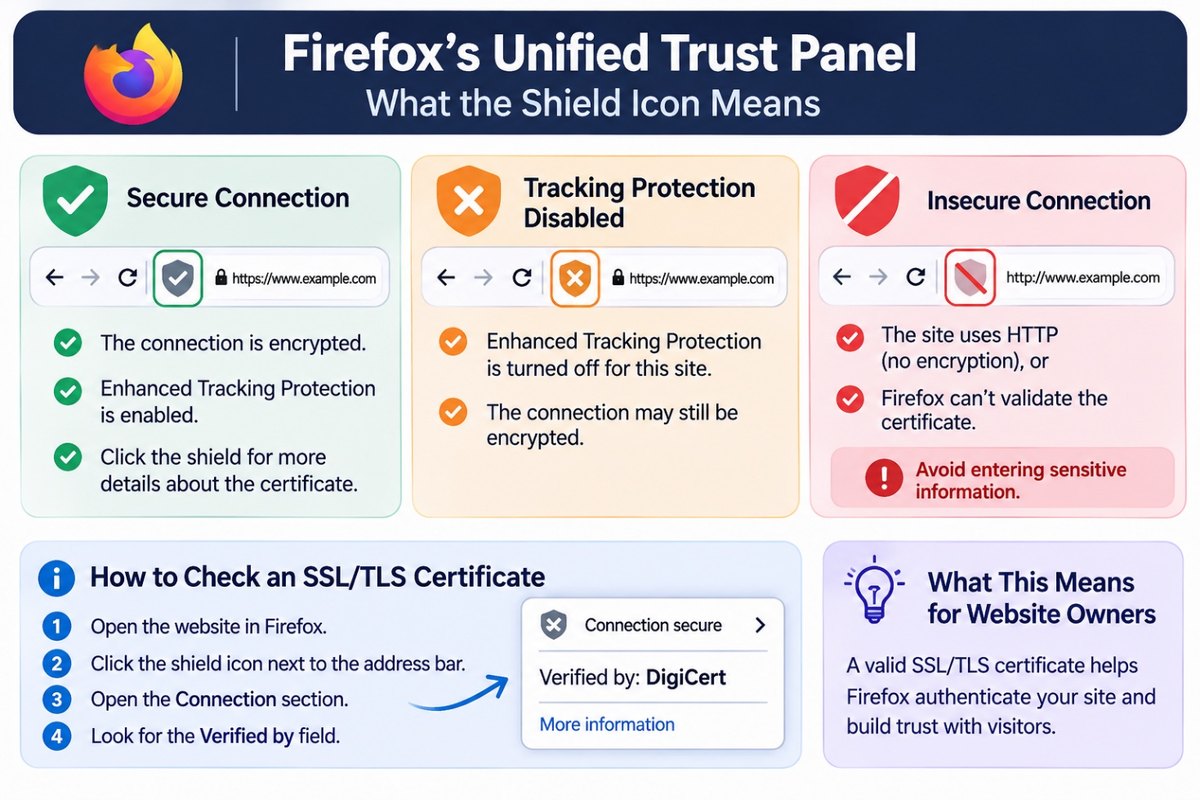
Shield with a Check Mark: Secure Connection
This icon indicates that the connection is secure and Enhanced Tracking Protection is enabled.
The connection is encrypted, helping protect data from eavesdropping. Users can click the shield to access additional connection and certificate information.
Shield with an X: Tracking Protection Disabled
This icon means Enhanced Tracking Protection has been turned off for the website.
Trackers and other content that Firefox would normally block may now be allowed to load. However, the HTTPS connection may still be encrypted and secure. This icon indicates a privacy setting, not necessarily a certificate problem.
Shield with a Red Strike: Insecure Connection
This indicator warns that the connection is not secure. This may happen when:
- The website uses HTTP instead of HTTPS.
- Firefox cannot validate the website's SSL/TLS certificate, for example, because it is self-signed or expired.
Avoid entering passwords, payment details, or other sensitive information when Firefox displays this warning.
-
*
How to Check an SSL/TLS Certificate in Firefox
Firefox also lets users inspect certificate information through the Unified Trust Panel.
- Open the website in Firefox.
- Click the shield icon next to the address bar.
- Open the Connection or Connection secure section.
- Look for the Verified by field to identify the certificate issuer.
The issuer identifies the organization that issued the certificate. It is not a rating of the website's overall trustworthiness.
-
*
What Does This Mean for Website Owners?
The Unified Trust Panel makes connection security information easier to access, but it is important to understand what it actually verifies.
- Use a trusted SSL/TLS certificate. A valid certificate helps Firefox authenticate your website and establish an encrypted HTTPS connection.
- Keep HTTPS properly configured. A certificate alone is not enough; the server must also be configured correctly.
- Don't confuse encryption with website reputation. A valid certificate protects data in transit but does not guarantee that a website is legitimate or safe.
- Remember that ETP is separate. Firefox's tracking protection settings do not determine whether an SSL/TLS certificate is valid.
-
*
Conclusion
Firefox's Unified Trust Panel brings connection security and tracking protection information together under one shield icon. Users can check whether a connection is secure, manage tracking protection, and view certificate issuer details.
For website owners, a properly configured SSL/TLS certificate remains essential for website authentication and data protection. However, the shield is not a general website trust rating: it reflects the browser's assessment of connection security and privacy settings.
-
