


SSL Certificate Public Key vs Private Key
-
An SSL/TLS certificate relies on a pair of cryptographic keys: a public key and a private key. Both are generated together when you create a Certificate Signing Request (CSR), but they serve different purposes.
Understanding how these keys work, where the private key is stored, and how to protect it will help you install and manage your SSL certificate correctly.
- Automatic renewals
- Less manual work
-
-
*
What Are Public and Private Keys?
A public key and a private key form a cryptographic key pair. They are mathematically related, but they cannot be used interchangeably.
- Public Key: This key is included in the CSR and later in the issued SSL/TLS certificate. It can be shared publicly. It allows other parties to verify digital signatures or participate in cryptographic operations, depending on the algorithm and protocol.
- Private Key: This key is kept secret and securely stored by the certificate owner. It is used to create digital signatures and prove control of the corresponding public key during TLS authentication.
In an HTTPS connection, the server uses its private key as part of the TLS handshake to prove its identity and establish secure communication. The certificate provides the corresponding public key, which clients use as part of the authentication process.
Note: The private key is not included in the SSL certificate, it should be generated and stored on the certificate requestors side. Please do not share your Private Key to anybody, including your SSL provider.
-
*
How Are SSL Certificate Keys Generated?
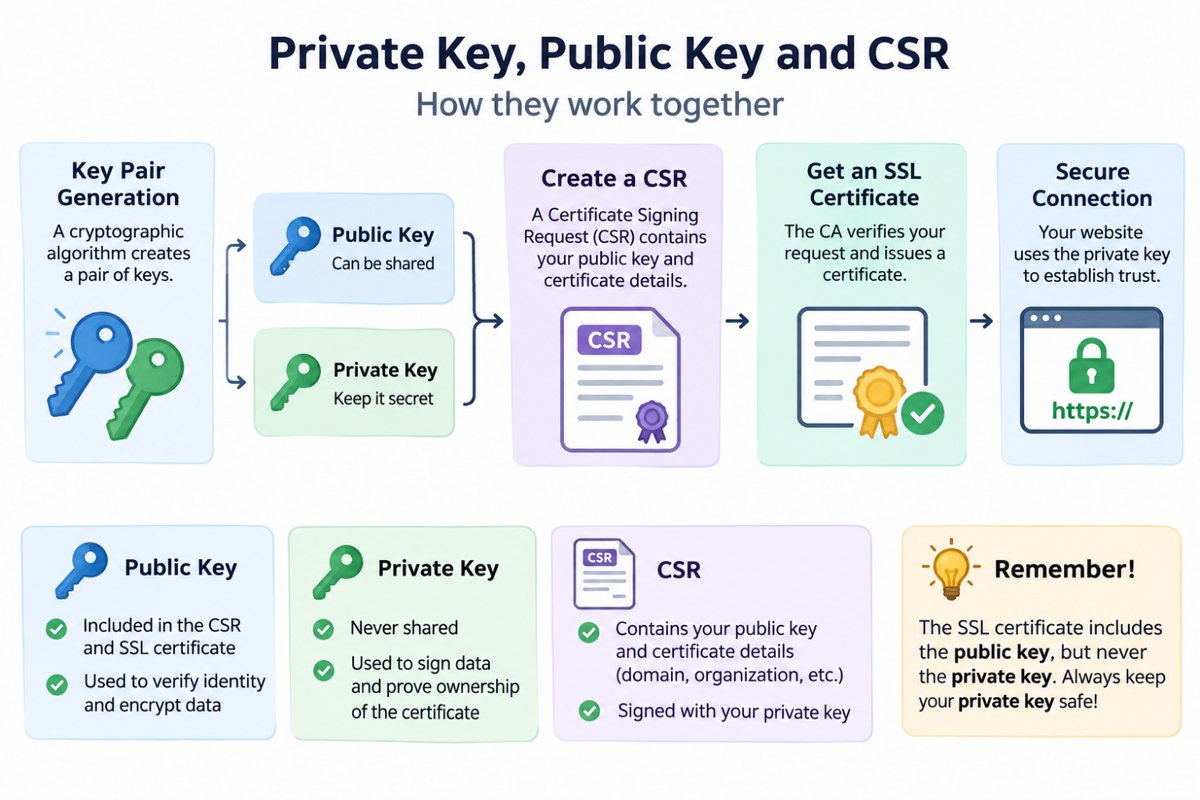
The public and private keys are created as a pair using a cryptographic algorithm, such as RSA or ECC.
The process works as follows:
- Generate the private key. A cryptographically secure random process creates the private key.
- Derive the public key. The corresponding public key is mathematically generated from the private key.
- Create the CSR. The CSR contains the public key and certificate information, such as the domain name and organization details. It is signed using the private key to demonstrate possession of that key.
- Submit the CSR to the CA. The Certificate Authority validates the required information and issues the SSL/TLS certificate containing the public key.
The private key stays with the customer throughout this process. It is not included in the CSR and should never be shared with the Certificate Authority.
-
*
Generate a CSR and Private Key with GoGetSSL
You can generate both files using the GoGetSSL Online CSR Generator.
The generator creates the CSR and corresponding private key in your browser. GoGetSSL does not receive or store your private key.
After generation, download and securely save both files:
- CSR file: Submit it when ordering or reissuing your SSL certificate.
- Private Key file: Keep it secure. You will need it when installing the certificate on your server.
Save the private key before closing the browser tab. If you lose it and have no backup, it cannot be downloaded again from the generator.
Note: the public key will be included in the CSR and later, in the issued SSL/TLS certificate. There is no separate file with Public Key.
-
*
Where Is the SSL Certificate Private Key Stored?
The private key is usually saved in the same environment where the CSR was generated. Depending on your setup, check:
- Hosting control panel: Look in the SSL/TLS section or Private Keys area of cPanel, Plesk, WHM, or DirectAdmin.
- Linux server: Check the directory where you generated or saved the CSR and key files. Common file extensions include .key and .pem.
- Windows/IIS: Check the Windows certificate store. If the certificate and private key are available, you may be able to export them together as a password-protected PFX file.
- Other server environments: Check the relevant keystore, such as a Java JKS or PKCS#12 file.
For platform-specific instructions, see our guide: How to Find a Lost SSL Certificate Private Key.
Note: _In case the key pair was generated with the online tools, such as GoGetSSL Online CSR Generator, both keys need to be saved on your own and are not stored by GoGetSSL._
-
*
What If You Have Lost Your Private Key?
If you cannot locate the private key or recover it from a backup, you will need to generate a new key pair and reissue your SSL certificate.
GoGetSSL provides unlimited free reissues for active SSL certificate orders. Reissuing replaces the certificate files but does not extend or change the original expiration date.
Follow these steps:
- Generate a new CSR and private key. You can use the GoGetSSL Online CSR Generator or generate the files on your server.
- Save both files securely. You will submit the new CSR for reissue and use the matching private key when installing the new certificate.
- Submit a reissue request. Log in to your GoGetSSL account, open SSL Certificates, select the relevant order, and click Reissue.
- Complete domain or organization validation if required by your certificate type.
- Install the reissued certificate together with the new private key.
For detailed instructions, see How to Reissue an SSL Certificate.
-
*
How to Keep Your Private Key Secure
Follow these basic practices to avoid losing or exposing your private key:
- Store the key in a secure location and keep an encrypted backup.
- Restrict access to authorized administrators.
- Do not send the private key to the Certificate Authority or share it with third parties.
- When transferring a certificate and its key, use a password-protected PFX/PKCS#12 file where appropriate.
- Keep the private key separate from publicly accessible website files.
-
*
Conclusion
The public key and private key work together, but they have different roles. The public key is included in the SSL/TLS certificate and can be shared, while the private key must remain confidential and under your control.
Always save the private key when generating your CSR. If it is lost and cannot be recovered, generate a new key pair and reissue your certificate using the new CSR.
-
