


How to Install an SSL Certificate on IBM HTTP Server
-
IBM HTTP Server (IHS) is an enterprise web server based on Apache HTTP Server, with additional IBM features and integration with WebSphere Application Server.
To enable HTTPS, you need an SSL/TLS certificate and a key database file (.kdb) containing the certificate and its private key. IBM provides the iKeyman utility to manage these files.
This guide explains how to create a key database, generate a CSR, install your certificate, and configure IBM HTTP Server to use it.
- Automatic renewals
- Less manual work
-
-
*
Step 1: Create a Key Database File
First, create a .kdb file to store your private key and SSL/TLS certificate.
- Open the IBM Key Management (iKeyman) utility.
- Windows: Launch Key Management Utility from the IBM HTTP Server program folder.
- Linux/UNIX: Run ikeyman or the iKeyman script from the IBM HTTP Server installation directory.
- Select Key Database File → New.
- Choose CMS as the database type.
- Enter a file name, such as example.com.kdb, and specify its location.
- Click OK.
- Create a password for the key database.
- Select Stash the password to a file to save the password in a protected .sth file.
- Click OK to finish.
Keep the .kdb, .sth, and related files secure. The IBM HTTP Server process must have permission to access them.
- Open the IBM Key Management (iKeyman) utility.
-
*
Step 2: Generate a CSR
You need a Certificate Signing Request (CSR) to order an SSL/TLS certificate.
- Open the newly created .kdb file in iKeyman.
- Enter the database password.
- Under Key Database Content, select Personal Certificate Requests.
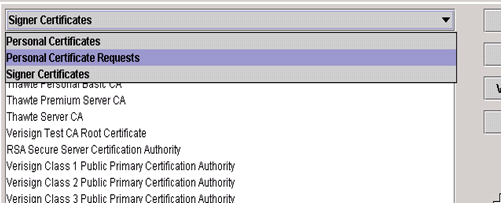
- Click New.
- Enter the certificate request details:
- Key Label: A name to identify the certificate.
- Key Size: Select an appropriate key size.
- Signature Algorithm: Choose a supported algorithm.
- Common Name: Enter the domain name, such as example.com.
- Organization: Enter your company name.
- Country, State, and Locality: Provide your organization's location.
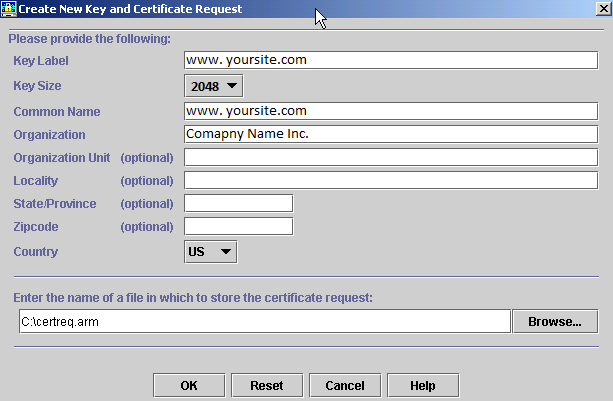
- Specify the CSR output file name.
- Click OK to generate the request.
Submit the generated CSR to GoGetSSL when ordering your SSL/TLS certificate.
Important: Keep the original .kdb file. It contains the private key associated with your CSR. You will need this same database to receive the issued certificate.
-
*
Step 3: Download Your Certificate Files
After your Certificate Authority (CA) issues the certificate, download the certificate files and extract the archive.
You may receive:
- Primary certificate: The certificate issued for your domain.
- Intermediate certificate: Connects your domain certificate to a trusted root CA.
- Root certificate: The CA's root certificate, which establishes the trust chain.
Keep the files in an accessible directory on your server.
-
*
Step 4: Install the Root and Intermediate Certificates
Import the CA certificates into your key database as signer certificates.
- Open iKeyman.
- Select Key Database File → Open.
- Browse to the .kdb file created earlier.
- Enter its password.
- Under Key Database Content, select Signer Certificates.
- Click Add.
- Browse to the intermediate certificate file and select it.
- Enter a label if prompted, then confirm.
- Repeat the process for the root certificate if it is not already present in the database.
Make sure you import the correct CA chain supplied for your certificate.
-
*
Step 5: Install the Primary SSL/TLS Certificate
Now import the certificate issued for your domain.
- In iKeyman, open the same .kdb file used to generate the CSR.
- Enter the database password.
- Under Key Database Content, select Personal Certificates.
- Click Receive.
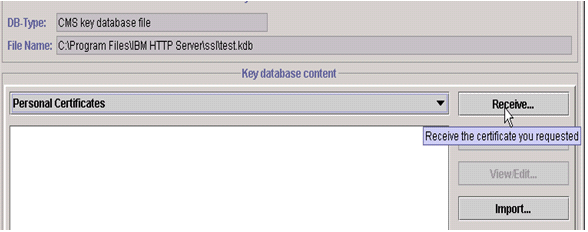
- In the certificate file dialog, select the issued certificate.
- Choose Base64-encoded ASCII data if iKeyman asks for the certificate format.
- Click OK to import the certificate.
The certificate should now appear under Personal Certificates.
Important: Receive the issued certificate into the same key database that generated the CSR. Otherwise, IBM HTTP Server may not find the corresponding private key.
-
*
Step 6: Configure SSL in IBM HTTP Server
After importing the certificate, configure IBM HTTP Server to use the key database.
Open the httpd.conf configuration file and check that the IBM SSL module is enabled:
LoadModule ibm_ssl_module modules/mod_ibm_ssl.so
Add or update the HTTPS configuration:
Listen 443
<VirtualHost *:443>
    ServerName example.com
    SSLEnable
</VirtualHost>
KeyFile "/path/to/example.com.kdb"
Replace the example domain and file path with your actual values.
If the key database contains multiple personal certificates, use the SSLServerCert directive to specify the certificate label:
SSLServerCert example.com
The label must match the one assigned to your certificate in iKeyman. If the database contains a default personal certificate, this directive may not be necessary.
Save the configuration and restart IBM HTTP Server to apply the changes.
-
*
Step 7: Verify the Installation
Once the server restarts, open your website using HTTPS:
https://example.com
Check that:
- The browser establishes a secure HTTPS connection.
- The certificate is valid and matches your domain.
- The certificate chain is complete.
- The correct certificate is being served.
You can also use an SSL/TLS testing tool to check the server configuration and certificate chain.
-
